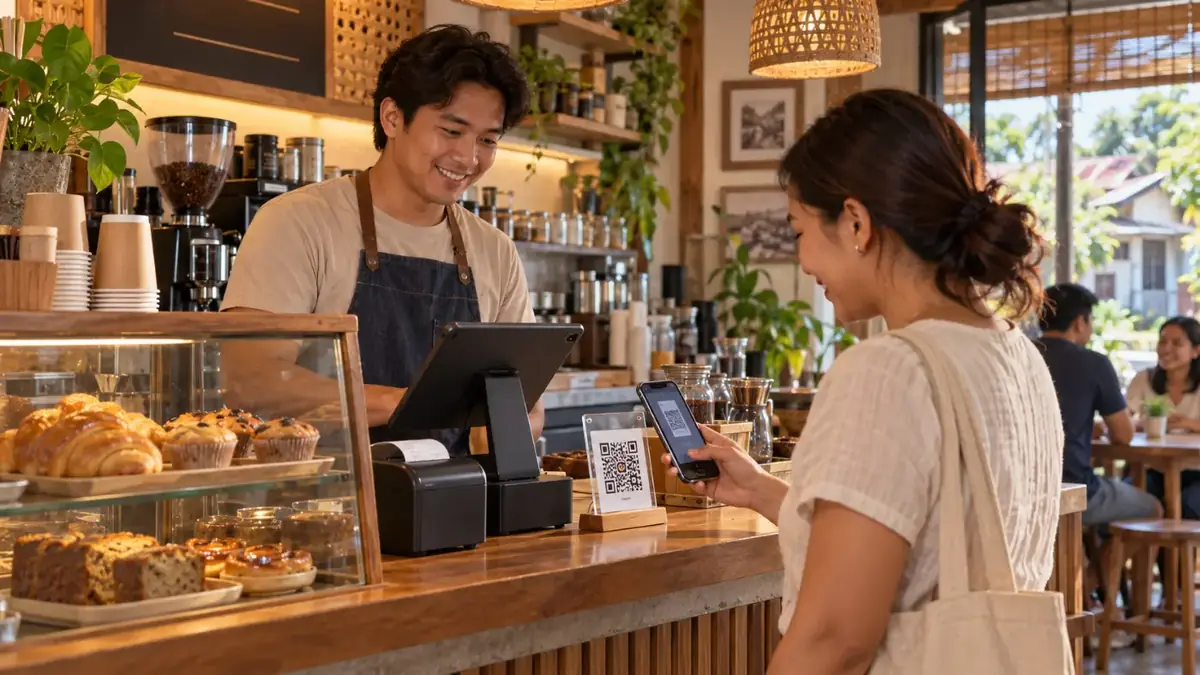
Many customers already order through chat. They message your Facebook page asking "Meron pa kayong…?", wait for a reply, then type out what they want. It works, but it's slow for both sides. You answer the same questions about prices and stock all day, and orders get lost between other messages.
A store link fixes the first half of that conversation. Instead of listing your products by hand, you send one link. The customer sees what you have, builds their order, and sends it to you in a single message.
What a store link is

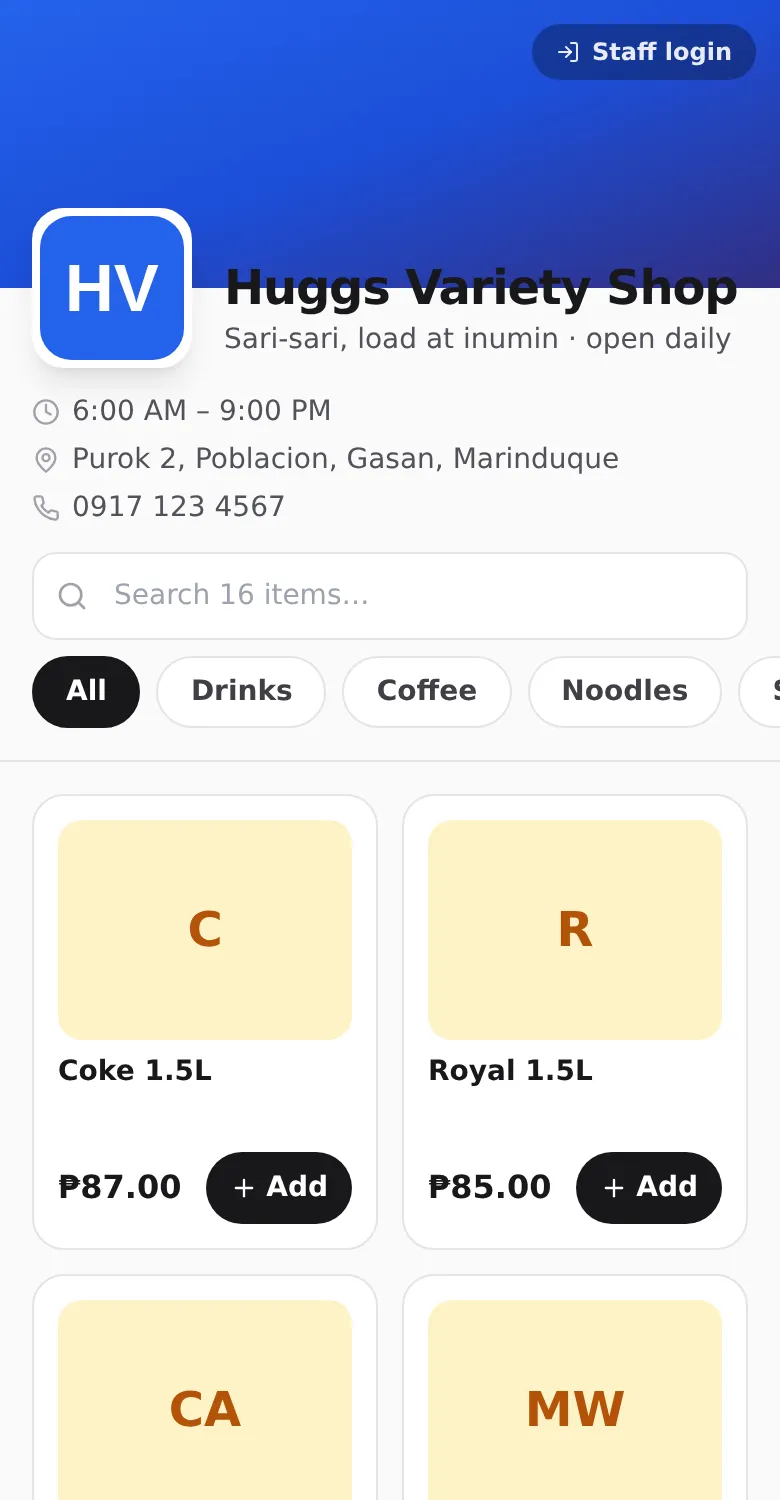
In HuggsPOS, every store can have its own public page at an address like huggspos.com/your-store-name. It isn't a separate website you have to build or maintain. It's connected to your POS, so it shows the same items you sell at the counter:
- your items with photos and prices, sorted by category,
- your store name, logo, store hours and contact details,
- a search box and category tabs, so customers find things quickly.
Anyone can open it on a phone. Customers don't need to download an app or create an account.
What customers see, and what they don't
Customers see your products, prices and whether an item is available. They never see your costs, your profit or your exact stock counts. When an item sells out at the counter, the store link shows it as sold out on its own, so you don't get orders for things you no longer have.
How an order reaches you
The link doesn't take payments or replace your chat. It makes the chat order cleaner:
- The customer adds items to their cart on your store link.
- They tap Messenger, Viber or SMS, and the app opens with the whole order already typed out, including the total and a short order code.
- In HuggsPOS, the order appears under Online Orders as Waiting for chat.
- When the customer's message with the same code arrives, you tap Confirm. This step matters: it means only orders from real customers you've actually talked to move forward.
- When they pick up, or when you deliver, tap Ring up to charge the order at the register. Stock goes down at that point, like any other sale.
Where to share your link

The link is most useful when customers find it without asking. Good places for it:
- Your Facebook page, in the website field, so it shows on the page itself.
- Your Instagram and TikTok bio.
- Chat replies. When someone messages "Ano po ang meron kayo?", send the link instead of typing a list.
- Barangay group chats and buy-and-sell groups, where people already look for nearby stores.
- A printed sign at your counter, so walk-in customers can order ahead next time.
Because the link is connected to your POS, it stays current. When you change a price or add a new item at the counter, the link shows it too, so you never have to update a menu photo or a price list post again.
Your staff can use the same link
The store link also has a Staff login button. Your staff open the same address and sign in to your store from there, which is easier than remembering a separate login page.
Setting it up
You only set up the link once:
- Open Settings → Store Link.
- Choose the name that will appear in your address (for example aling-nenas-store).
- In the Storefront settings, add your Messenger username or Viber number, so customers have a way to send their order.
- Make sure your items have clear names, photos and the right categories. That's what customers will see.
Then copy the link and start sharing it.
Is it worth it for a small store?
A store link works best for stores that already get orders by chat: cafés and milk tea shops taking pre-orders, mini-groceries that deliver around the barangay, and sari-sari stores with regular suki who message ahead. If nearly all your sales are walk-ins, the link is still a free way to show up when people search for stores nearby on Facebook.