Tap a question to see its short video and the steps to follow. Tap a video to play it here, or watch them all on our YouTube channel.
Getting started
Why do I need a POS for my store?

A notebook tells you what you wrote down. A POS tells you what actually happened: sales for the day, profit per item, what's running low and who made each sale.
- Record every sale on the POS instead of the notebook. Stock goes down automatically.
- At closing, open Reports → Sales Summary to see the day's sales and profit right away.
- Watch the bell at the top for items that are running low.
- Give each staff member their own PIN so every sale shows who made it.
I'm planning to open a store. Where does a POS fit in?

Put it on your opening checklist next to your location, capital, stock, permits and suppliers. Setting it up before opening day means your first sale is already recorded.
- Create your store at huggspos.com (see the next question).
- Add your first stock as items, with the selling price and, if you have it, your cost.
- Set a low-stock alert level for your fast movers.
- If you'll have staff, add them with their own PINs before you open.
How do I set up HuggsPOS?

It takes about a minute, and every new store gets 30 days of Pro free.
- Go to huggspos.com and tap Try Free, then Create Store.
- Enter your store name, store type and email, and set your 4-digit owner PIN.
- Confirm your email address.
- Add your products by typing them in, or import your Excel list (see below).
Do I need a computer, scanner and printer to use a POS?
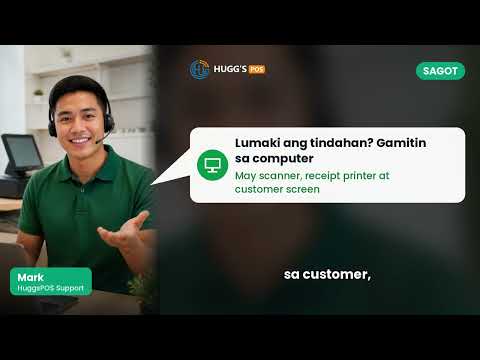
No. A phone is enough to start.
- Open HuggsPOS on your phone's browser and sign in.
- To scan a barcode, tap Scan on the register and point the back camera at it. The item goes into the cart.
- Sell without printing. Receipts are optional.
- Add a USB or Bluetooth scanner, a bigger screen or a receipt printer later, only if the store gets busy enough to need them.
Is it illegal to use a POS in the Philippines?
It depends on what you use it for. To issue official receipts or invoices, the machine or software must be registered with the BIR. To monitor your own sales, stock and profit, a POS is a record-keeping tool, like a notebook or a spreadsheet.
- Use HuggsPOS to track your sales, stock and profit.
- Keep issuing your BIR-registered invoices separately for every sale, as required.
- For questions about invoices or your registration, ask your Revenue District Office (RDO) or an accountant. This is general information, not tax or legal advice.
Your products and stock
How do I import my Excel product list?

If your products are already in Excel or Google Sheets, import them instead of typing each one.
- Check your file. Only two columns are required: name and price. Category, SKU or barcode, stock and cost are optional.
- Clean up the numbers: every item needs a price, and stock should be whole numbers.
- Save it as .xlsx or .csv. Older .xls files can't be read.
- In HuggsPOS, go to Items → Item List and click Import, then choose your file.
- Check the preview. If a row has an error, fix it in your file, click Clear and choose the file again.
How do I avoid running out of my best-sellers?

Every sale lowers the stock automatically, and HuggsPOS warns you when an item is running low.
- Open the item in Items and set Low-stock alert at. A good number is how many you sell a day times the days until your supplier delivers, plus a little extra.
- Watch for amber (low) and red (out of stock) items on the selling screen, and the count on the bell at the top.
- Tap Restock on an alert to open Purchase Orders, then New PO → Autofill: Low Stock.
- When the delivery arrives, receive the order and your stock goes up automatically.
Selling at the counter
What if there's no signal?

Keep selling. Sales are saved on your device and sync when the internet comes back.
- Keep ringing up sales as usual. Stock still goes down as you sell.
- Check the status at the top of the app. It shows how many changes are still waiting to sync.
- When the signal returns, everything uploads automatically. You don't have to press anything.
Which POS screen layout should I use?
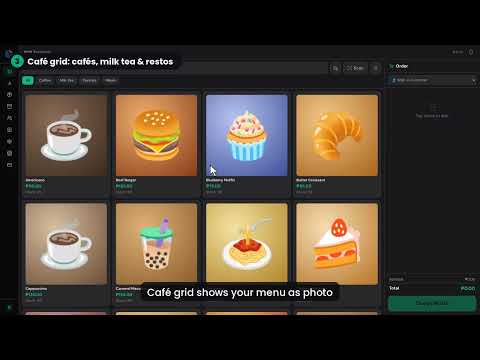
There are five: Classic list (sari-sari stores and groceries), Café grid (cafés and milk tea shops), Big-button kiosk (tablets and food stalls), Compact pro (hardware stores and pharmacies) and Classic register (long-time cashiers and minimarts).
- Open Settings → Store look & layout.
- Each card shows what that layout looks like. Pick the one that fits how you sell.
- Tap Save. The POS screen switches right away.
Staff and cash
Can my staff steal from me without me knowing?

HuggsPOS gives you control even when you're not at the store.
- Give every staff member their own 4-digit PIN, so every sale shows who made it.
- Open and close every shift with a cash count. At closing, HuggsPOS shows how much should be in the drawer, so a shortage is visible the same day.
- In Employees → Access Rights, decide who can void sales and give discounts.
- Check your sales from your own phone, even when you're not at the store.
How do I set up staff accounts, shifts and terminals?

Staff accounts are part of Pro, including the free first month.
- Go to Employees → Employee List → Add Employee. Enter their name, role (for example Cashier) and a 4-digit PIN.
- Set what each role can do in Employees → Access Rights.
- To let someone sign in on their own phone, turn on Enable device login for that employee.
- At opening, tap Start Shift and enter the cash already in the drawer. At closing, tap End Shift, count the cash and enter it.
- If you have more than one counter, open Settings → Terminals and tap Add terminal to give each device its own name and setup.
Your online store
Can I have my own online store?

Yes. Your store gets its own link, like huggspos.com/your-store, connected to your POS, so prices and items are always current.
- Open Settings → Store Link and choose the name for your address.
- In the Storefront settings, add your Messenger username or Viber number so customers can send their order.
- Make sure your items have clear names, photos and the right categories.
- When an order arrives under Online Orders, tap Confirm once the customer's message with the same order code comes in, then Ring up when they pick up or you deliver.
Where should I share my store link?

Anywhere your customers already are.
- Add it to your Facebook page's website field.
- Put it in your Instagram and TikTok bio.
- Send it when someone asks "Ano po ang meron kayo?" in chat.
- Post it in barangay group chats and buy-and-sell groups.
- Print it on a sign at your counter so walk-in customers can order ahead next time.
Still have a question?
Email [email protected] or message the HuggsPOS Facebook page. You can also read the full Getting Started FAQ.