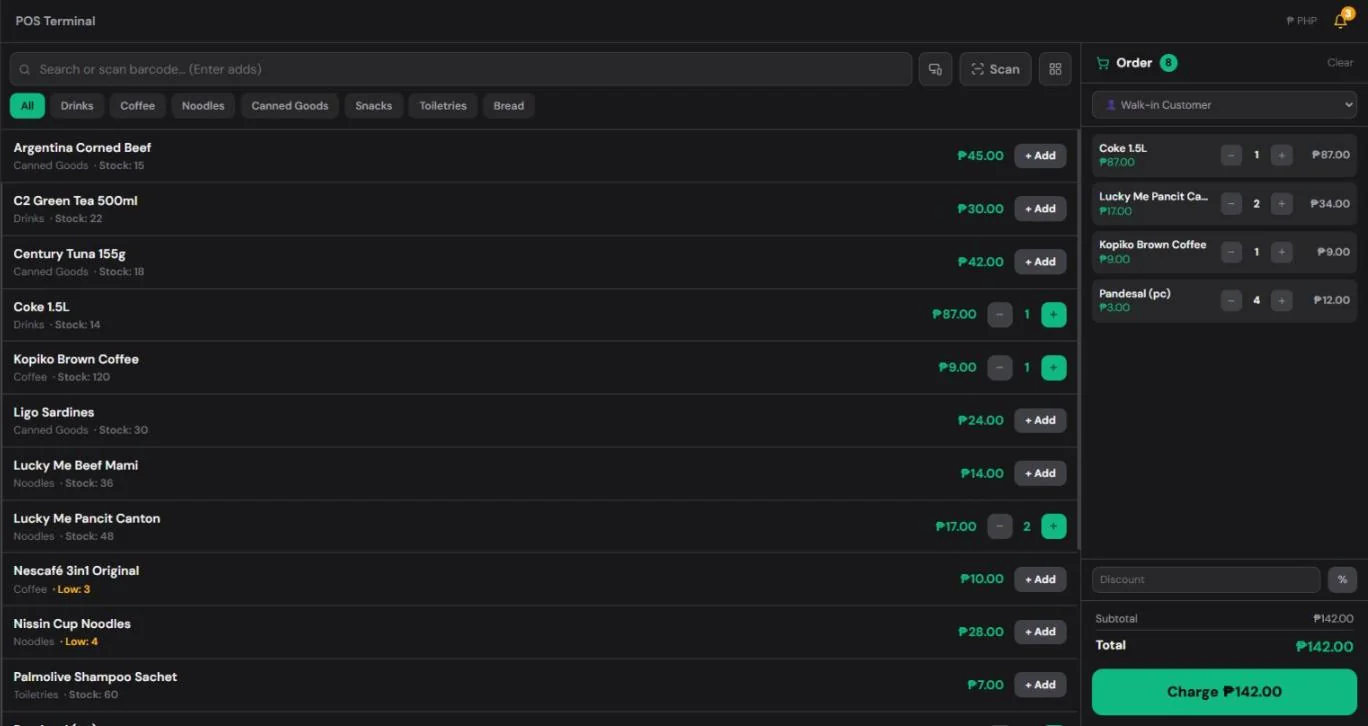
The first week with any POS brings the same questions. How do I get my products in? Why won't the printer connect? How do I sell 10 of the same item without scanning 10 times?
This page collects the questions store owners ask us most, with short answers and the exact place to tap in the app. Use the headings to jump to what you need.
Setting up your store
How do I create my store?
Go to huggspos.com, tap Try Free, then Create Store. Enter your store name, store type (sari-sari store, café, etc.) and email, then confirm your email address. The register is ready right after, and the whole setup takes about a minute.

Do I need a computer, scanner or printer to start?
No. HuggsPOS runs in the browser, so a phone or tablet is enough. The phone's camera can scan barcodes, and you can sell without printing receipts at all. A computer, a barcode scanner and a receipt printer are all optional. Add them later if your store gets busy enough to need them.
How do I add my products quickly? Can I import my Excel list?
Yes. If you already have a list in Excel or Google Sheets, import it instead of typing each item:
- Go to Items → Item List and tap Import.
- Choose your .xlsx or .csv file.
- Only two columns are required: the item name and its price. Category, SKU or barcode, stock and cost are optional.
You don't have to rename your columns. The importer recognizes common headings such as Product Name, SRP, Selling Price, Qty, Barcode, Puhunan and Presyo. This is easiest on a computer, but it also works in a phone browser.

Tip: include the cost (puhunan) of each item, either in the import or later in the item details. Without it, HuggsPOS can show your sales but not your profit.
Do I need a barcode scanner, or can I use my phone's camera?
The camera works. Tap Scan on the register, point the back camera at the barcode, and the item goes into the cart. It works in Chrome on Android and in Safari on iPhone.
If you scan a lot of items every day, a USB or Bluetooth barcode scanner is faster. On a computer, a scanner works like a keyboard: scan into the register and the item is added. If you scan a barcode that isn't saved yet, HuggsPOS tells you and offers to add it as a new item with that barcode already filled in.
Which receipt printers work with HuggsPOS?
There are four ways to print. Pick the one that matches your device:
- Bluetooth thermal printer (58 mm or 80 mm) with an Android phone or tablet. In Chrome on Android, go to Settings → Printing, turn on Bluetooth printer, tap Pair printer, then Print test. Most small portable receipt printers sold locally work this way.
- iPhone or iPad. Receipts print through the normal Print / Share sheet, because iPhones don't let websites connect to Bluetooth printers directly.
- USB printer on a computer. Add it in Settings → Printers and tap Pair. This needs Chrome or Edge on the computer.
- Wi-Fi or LAN printer. This needs the free HuggsPOS Print Helper running on one Windows or Mac computer in the store. The setup guide is in Settings → Printers.
Any other printer can print through the browser's print dialog.
Selling at the counter
A customer buys 10 of the same item. Do I have to scan it 10 times?
No. Scan or tap the item once, then tap the quantity number next to it in the cart. A number pad opens. Type 10 and tap Set quantity. Typing 0 removes the item from the cart.
Scanning the same item again also works: each scan adds one more to the line that's already in the cart, so you won't get duplicate lines.
How do I give a discount?
Open the Discount option in the cart and choose % (for example 10% off) or ₱ (for example ₱20 off). Type the amount and the total updates right away. On the phone app, the discount is a small Add discount row that stays collapsed until you need it, with quick 5%, 10% and 20% buttons.
A few things to know:
- Tax is computed on the discounted amount, not the original price.
- The discount appears on the receipt and in your reports.
- It clears automatically after the sale, so the next customer starts at full price.
- The owner can turn discounts off for some staff (see the staff section below).
How do I record a GCash cash-in or cash-out with the reference number?
First turn the service on in Settings → Cash In Service → Enable Cash In and set your fees. A GCash button then appears on the register.
- Tap GCash and choose Cash In (the customer gives cash, you send GCash) or Cash Out (the customer sends GCash, you give cash).
- Enter the amount. The fee is added automatically.
- Type the GCash Ref No. from the GCash confirmation screen. Spaces are fine.
- Tap Confirm, then Print receipt if the customer wants one.
The reference number is saved with the transaction and printed on the receipt, so you can match it against your GCash history later. To make it required for every transaction, turn on Require GCash Ref No. in the same settings. HuggsPOS also keeps a running balance of your cash drawer and your GCash account, so you can see how much of each you should have.
Can I reprint a receipt for an old sale?
Yes. Go to Reports → Receipts, open the sale, and tap Reprint. GCash and load transactions can be reprinted too, with their reference number. To find a sale quickly, change the date range at the top.
How do I cancel (void) a sale that was entered by mistake?
Go to Reports → Receipts, open the sale, tap Void, and type a short reason. Voiding a sale does three things:
- puts the items back in stock,
- reverses the cash or GCash amount,
- marks the receipt VOID so it no longer counts in your totals.
The original record is kept, so you can always see what was voided, by whom and why. Voiding is a Pro feature. Staff can only void if the owner allows it. There's no partial refund yet: to correct a sale, void it and ring up the right items again.
Money and reports
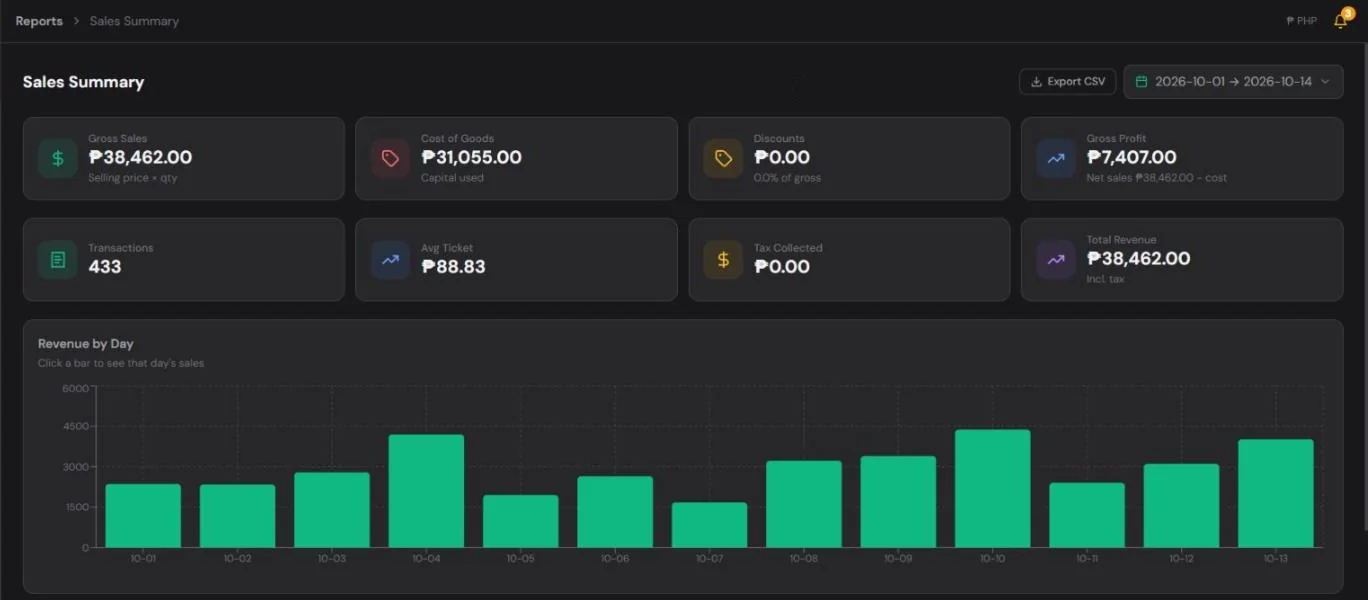
Where do I see today's sales and profit?
Open Reports → Sales Summary. It shows your gross sales, discounts, net sales, the cost of the goods you sold, and your gross profit for the dates you pick. Next to it:
- Sales by Item shows your best and slowest sellers.
- By Payment splits cash, GCash and other payment methods.
Why does my profit look too high?
Almost always because some items have no cost saved. Profit is your selling price minus your cost, so an item with no cost looks like 100% profit. Open Items → Item List, find the items with an empty cost and fill it in. For many items, export the list, fill in the cost column in Excel, and import it again.
How do I close the day and check the cash drawer?
Use shifts:
- At opening, tap Start Shift and enter the cash already in the drawer (your panukli).
- At closing, tap End Shift. HuggsPOS shows the expected cash in drawer based on the day's sales and GCash transactions.
- Count the actual cash and enter it.
- Tap Print day report for a summary of the shift. It shows the expected and counted cash, so any shortage is visible the same day.
You'll find past shifts under Reports → Shifts.
Staff
How do I add a cashier, and how do I control what they can do?
Go to Employees → Employee List → Add Employee and enter their name, role (for example Cashier or Manager) and a 4-digit PIN. On the shared store phone or computer, staff switch in with their PIN, so every sale shows who made it. To let someone sign in on their own device, turn on Enable device login for that employee.
To change what each person can do, open Employees → Access Rights. You can allow or block:
- viewing reports,
- editing items, prices and stock,
- giving discounts,
- cashing out or adjusting the cash and GCash balances,
- voiding sales.
Staff accounts are part of Pro, including the free first month.

Internet, online orders and your plan
What happens if the internet goes down during a sale?
Keep selling. Sales are saved on the device and upload automatically when the connection comes back. The status at the top tells you how many changes are still waiting to sync. Two things to remember:
- You need internet the first time you sign in on a device.
- Don't sign out or clear the browser's data while changes are still waiting, or those sales could be lost.
How do customers order from my store link?
Every store can have a public page at huggspos.com/your-store-name. Customers see your products and prices, but never your costs or stock counts. Here's how an order works:
- The customer builds a cart on your page and sends the order to you by Messenger, Viber or SMS, with an order code.
- The order appears in Online Orders as Waiting for chat.
- When the customer's message with the same code arrives, tap Confirm.
- When they pick up or you deliver, tap Ring up to charge it at the register.
You set your link's name in Settings → Store Link.
What happens to my data if I stop paying for Pro?
Nothing is deleted. Your store moves to the Free plan, which includes the register, inventory, up to 50 items and reports for the last 7 days. Your sales history and items stay saved, and everything turns back on when you subscribe again. New stores get the first month of Pro free. If you need more time to decide, the free month can be extended once by 14 days.
Common problems and quick fixes
Why won't the camera open when I tap Scan?
The browser needs permission to use the camera. When it asks, tap Allow. If you tapped Block by mistake, tap the lock or settings icon next to the web address and allow the camera there. Other things to check:
- Use Chrome on Android or Safari on iPhone.
- Close other apps that might be using the camera.
- For small or shiny barcodes, add light or turn on the flashlight in the scanner.
Why can't I find my Bluetooth printer?
Check these, in order:
- Make sure you're on an Android phone or tablet in Chrome or Edge. iPhones can't pair this way, so use Print / Share instead.
- Make sure the printer is on, charged, and not still connected to another phone or printing app.
- Turn Bluetooth on, then go to Settings → Printing → Pair printer and choose the printer from the list.
If it still won't pair, restart the printer and try once more.
My receipt prints too small, too wide or cut off. What do I change?
Set the paper size. Go to Settings → Printing → Receipt Paper Width and choose 58mm (small thermal) or 80mm (standard thermal) to match your roll. The default is for regular A4 printers, which is why thermal receipts can look wrong until you change it.
I forgot my PIN. What do I do?
On the phone app, tap Forgot PIN? on the PIN screen. The owner confirms with the account password, then sets a new PIN. For a staff member's PIN, the owner can change it any time in Employees → Employee List.
Why can't I see Employees, Customers or Settings?
Those sections are part of Pro. During your free month you have everything. After that, on the Free plan, the menu shows the register, items, inventory, online orders and 7-day reports. Your data in the other sections is still saved.
Still stuck?
Email us at [email protected] or message the HuggsPOS Facebook page. Include a screenshot if you can, because it helps us answer faster. Short video guides are on our YouTube channel.