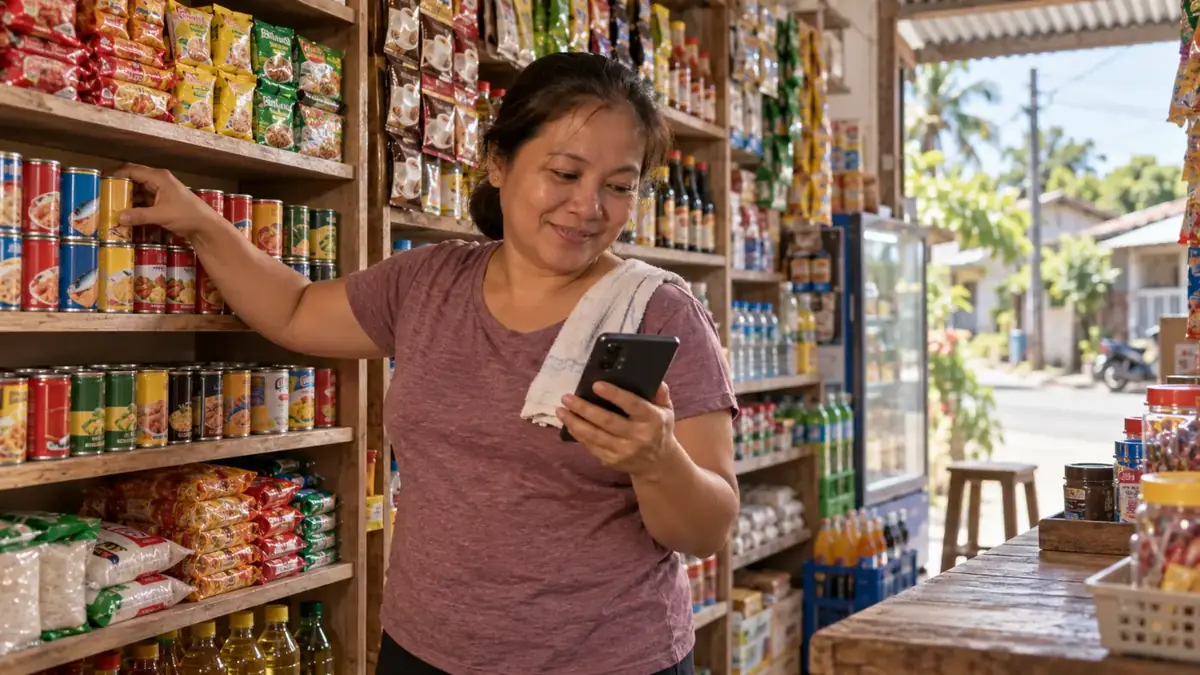
"Ubos na pala." Every store owner has said it. A customer asks for their usual softdrink, cigarette brand or instant noodles, the shelf is empty, and they buy it from the store down the street instead. You lose the sale, and if it happens often, you lose the customer.
The fix isn't counting every shelf every morning. It's getting a warning before an item runs out, early enough to restock. That's what low-stock alerts do.

How low-stock alerts work
In HuggsPOS, every sale lowers the item's stock automatically. You don't record stock separately. Once your starting stock is entered, the count stays current as you sell. From there, the alerts show up in three places:
- On the selling screen. An item that's running low is marked in amber right on the POS, so the cashier notices while ringing it up. Out-of-stock items are marked in red.
- On the bell at the top. The bell shows how many items need attention. Tap it to open Inventory alerts: out-of-stock items first, then low-stock items with exactly how many are left.
- When you restock. Each alert has a Restock button that takes you straight to your purchase orders.
Set your own alert level per item
What counts as "low" depends on the item. The default is 5, which works for slow movers, but it's too late for a best-seller. If you sell two cases of softdrinks a day, an alert at 5 bottles gives you a few hours, not a few days.
To change it, open the item in Items, find Low-stock alert at, and type the number you want. The bell updates as soon as you save.
A simple way to pick the number
Think about two things: how many you sell in a day, and how many days it takes to restock.
Alert level = daily sales × days until the delivery arrives (plus a little extra)
A few examples:
- Coke 1.5L: you sell about 4 a day and your supplier delivers in 2 days. 4 × 2 = 8, so set the alert at 10 to 12.
- Rice (per kilo): you sell 15 kilos a day and restock the next day. Set the alert around 20.
- Shampoo sachets: you sell a few a day and can buy more anytime at the market. The default of 5 is fine.
If you're not sure how fast something sells, check Reports → Sales by Item for the last week or two. Your best-sellers are at the top, and those are the items that need a higher alert level.
Turn alerts into a restock order
When it's time to buy, you don't have to write a list by hand:
- Tap Restock on an alert. HuggsPOS opens Purchase Orders.
- Tap New PO, then Autofill: Low Stock. Every low item is added with a suggested quantity, based on its alert level and how many you have left.
- Adjust the quantities if you need to, then create the order and send it to your supplier, or bring it to the market.
- When the delivery arrives, receive the order, and your stock goes up automatically.
The purchase order also becomes a record of what you bought and when. That helps when you're comparing supplier prices or checking how much money went into stock this month.
Make the alerts trustworthy
Alerts are only as good as your stock counts. A few habits keep them accurate:
- Enter the right starting stock when you add or import items.
- Record deliveries through purchase orders or by adding stock, instead of just putting items on the shelf.
- Record damaged or expired items as stock adjustments, so the count matches what's actually on the shelf.
- Do a quick count of your fast-moving items once a week or once a month, and correct any difference.