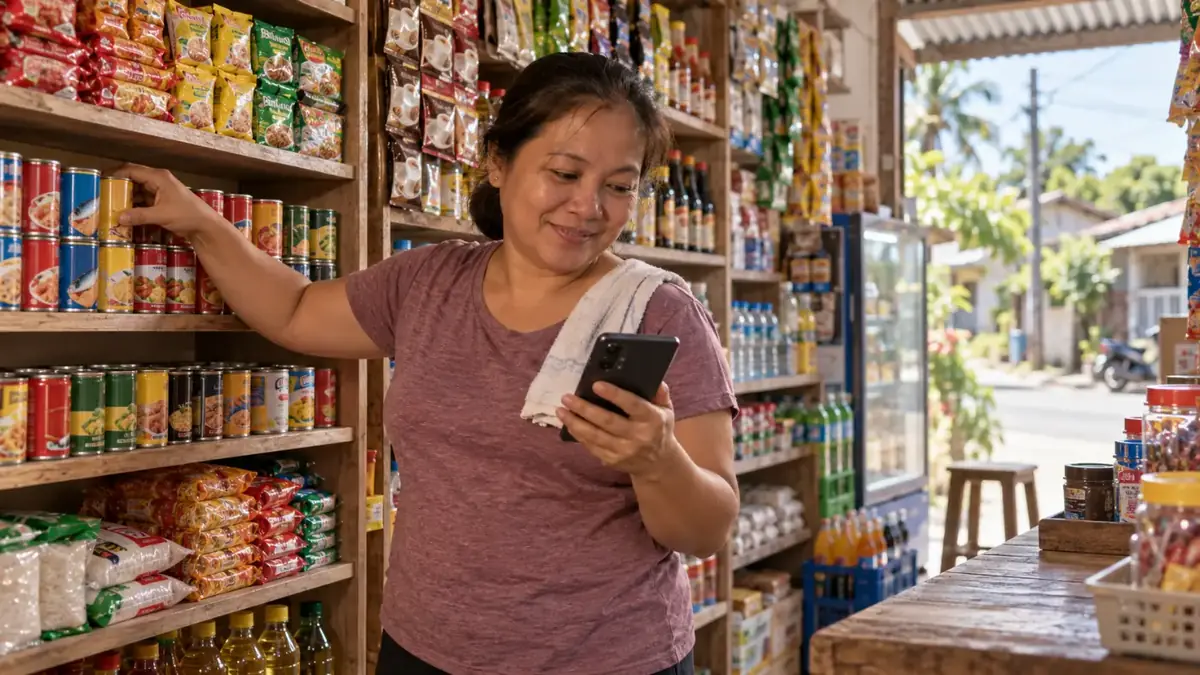
Running out of a best-seller is one of the most expensive things that can happen in a small store. A customer who can't find their usual softdrink or noodles walks to the next store — and might not come back. On the other side, buying too much of a slow item ties up money you could have used for things that actually sell.
A simple inventory system fixes both problems. Here's how to set one up without making it complicated.
What "inventory" really means for a small store
Inventory is just knowing three things about every item you sell:
- How many you have right now
- How fast it sells
- When you need to buy more
That's it. Everything else is a tool to help you answer those three questions.
Step 1: Make a list of your items
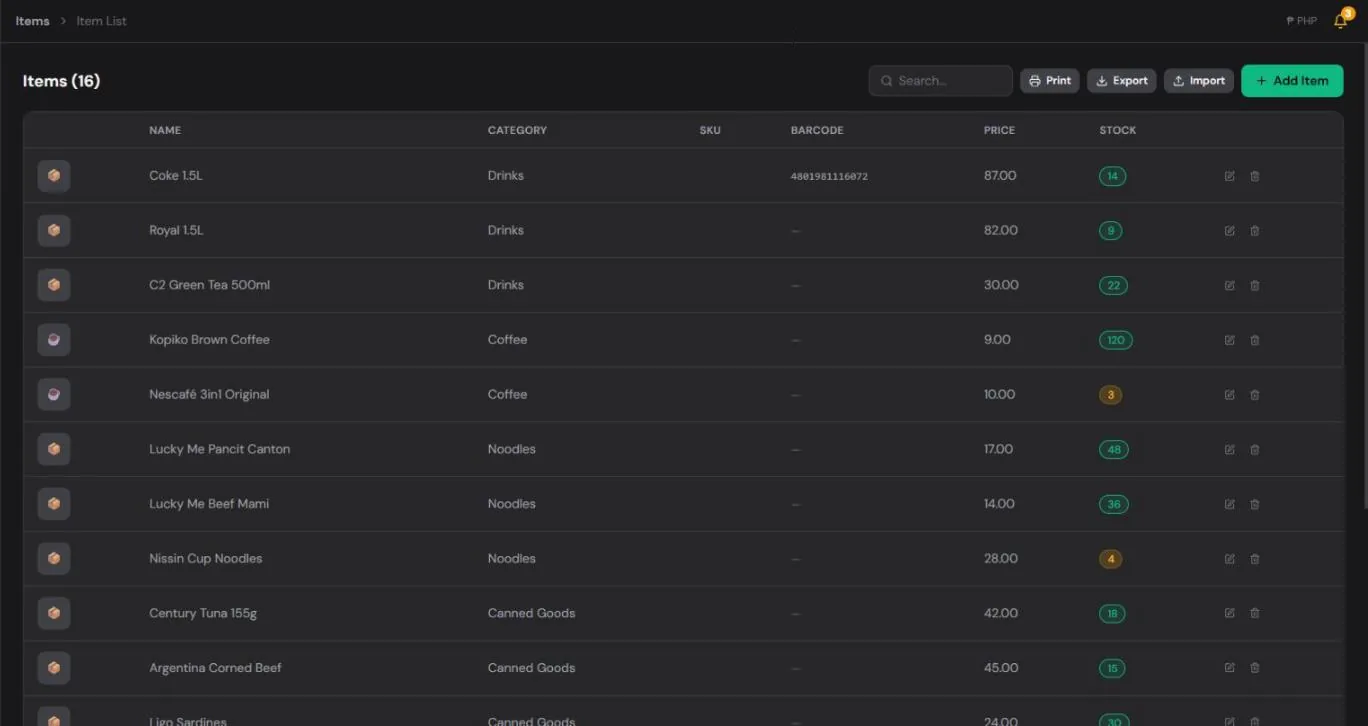
Start with a complete list of what you sell. For each item, write down:
- Name and size (for example, "Coke 1.5L" or "Lucky Me Pancit Canton Original")
- Your cost — what you pay the supplier per piece
- Your selling price
- The barcode, if it has one (this makes scanning faster later)
Group items into simple categories like Drinks, Snacks, Noodles, Canned Goods, Toiletries and Load. Categories make counting and reordering much faster.
Tip: if you have hundreds of items, start with your top 50 sellers. You can add the rest gradually.
Step 2: Do a starting count
Pick a quiet time — early morning before opening works well — and count everything on your shelves and in storage. Write the count next to each item. This is your starting stock.
It's tedious the first time, but you only have to do a full count once. After that, your stock goes down automatically as you sell (if you use a POS) or you update it from your sales records.
Step 3: Set a reorder point for each item
A reorder point is the number at which you buy more. For example: "When Coke 1.5L drops to 6 bottles, add it to my restock list."
To choose a reorder point, ask: how many of this item do I sell between now and my next supplier trip?
- If you sell about 4 bottles a day and you restock every 3 days, you need at least 12 bottles to last until your next trip. Set the reorder point around 12 to 15.
- For slow items, a reorder point of 2 or 3 is usually enough.
Best-sellers deserve higher reorder points. Running out of them costs you more than holding a few extra pieces.
Step 4: Update stock every time you restock
When you come back from the supplier or your delivery arrives, add the new quantities to your stock right away. If you wait until later, you'll forget, and your numbers will drift away from what's actually on the shelf.
Keep your supplier receipts. They show what you paid, which helps you notice when prices go up so you can adjust your selling price.
Step 5: Do a quick spot count every week
Once a week, count just a few items — your top 10 sellers is a good start — and compare with your recorded stock. If the numbers don't match, something is happening: unrecorded sales, items given away, spoilage, or theft.
Small differences are normal. A pattern of missing items is a signal to watch more closely.
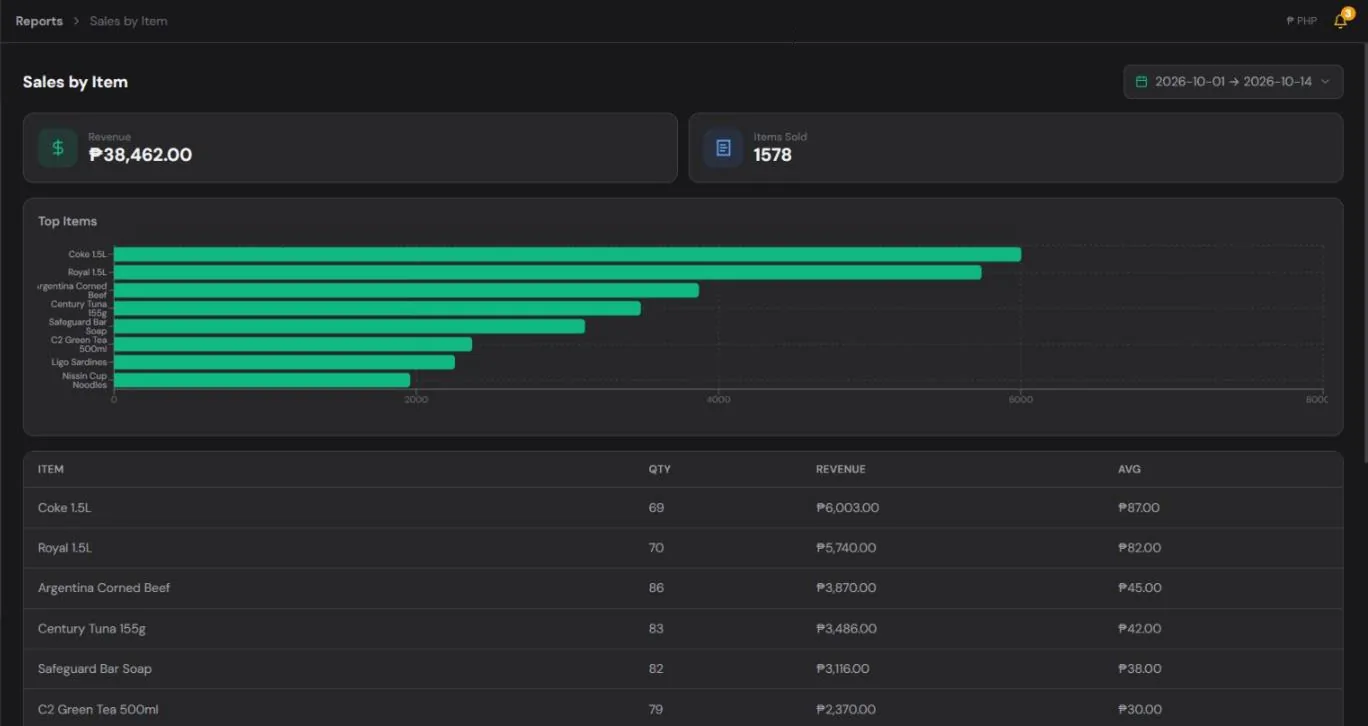
Step 6: Use your sales to decide what to buy
Your sales history is the best guide for restocking:
- Fast movers: buy enough to last until your next trip, plus a little extra.
- Slow movers: buy less, or stop carrying them if they haven't sold in a month.
- New items: start small and see how they sell before buying in bulk.
This is how stores grow their profit without growing their workload — by putting money into items that actually sell.
Watch out for expiry dates
Food, drinks and medicines expire. When you restock, put the new pieces at the back of the shelf and move older ones to the front ("first in, first out"). Check expiry dates during your weekly spot count, and sell items that are close to expiry first.
How a POS keeps inventory up to date automatically
Doing all this on paper is possible, but it's a lot of work. A POS app handles most of it for you. With HuggsPOS:
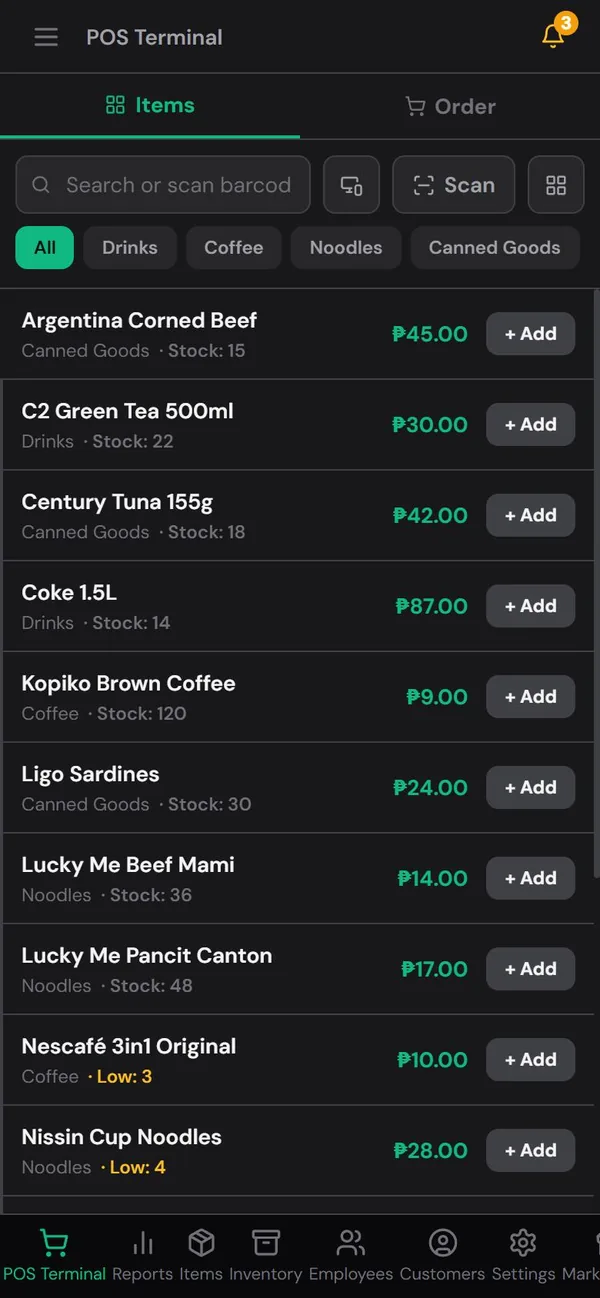
- Stock goes down automatically with every sale, so your numbers stay current without manual updates.
- Low-stock alerts tell you when an item reaches its reorder point, so you know exactly what to buy on your next supplier trip.
- Barcode scanning with your phone camera makes adding items and ringing up sales faster.
- Stock adjustments and counts let you record restocks, spoilage and your weekly spot counts.
The Free plan covers up to 50 items with inventory tracking — a good fit for getting started with your top sellers. Every new store gets 30 days of Pro free, and Pro handles larger stores with up to 500 items.
Keep it simple
The best inventory system is the one you'll keep doing. Start with your top sellers, set reorder points, update stock when you restock, and spot-check weekly. Within a month, running out of best-sellers will become rare — and you'll stop wasting money on items that don't move.
Start your free HuggsPOS store and set up your first items today.